Translate tables
Translation happens in two steps — first the tables (group names, attribute names, tooltips), then the product values. This page covers the tables.
What needs translating?
| Content | Who translates it |
|---|---|
| Storefront texts of the app (“View more”, “Add to compare”, “Download file”…) | Already translated into 34 languages |
| Product information (category, type, options…) | Shopify, like the rest of your products |
| Group names, attribute names, tooltips, option names | You, in the app — this page |
| Values managed in the app and metafields | You, with a translation app — next page |
Translations use Shopify’s native translation system, so translated tables are served in the customer’s language and indexed by search engines in every language.
Translate a table
You need at least two languages published on your store. If that’s not the case yet, add a language in your Shopify admin.
Open the table
In the app, open Specification tables and click the table to translate.
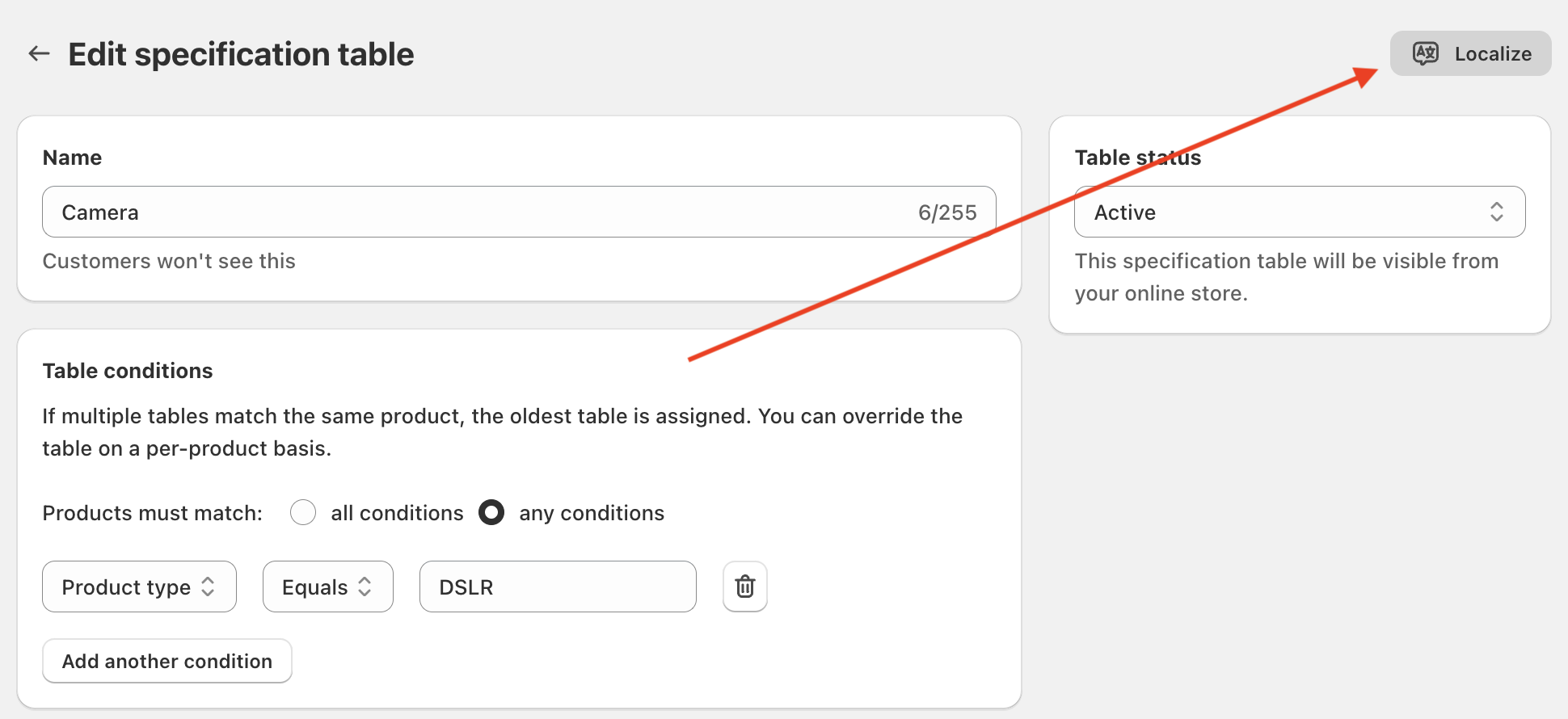
Click Localize
Click Localize at the top of the page. The button only appears when your store has at least two languages.
Choose a language
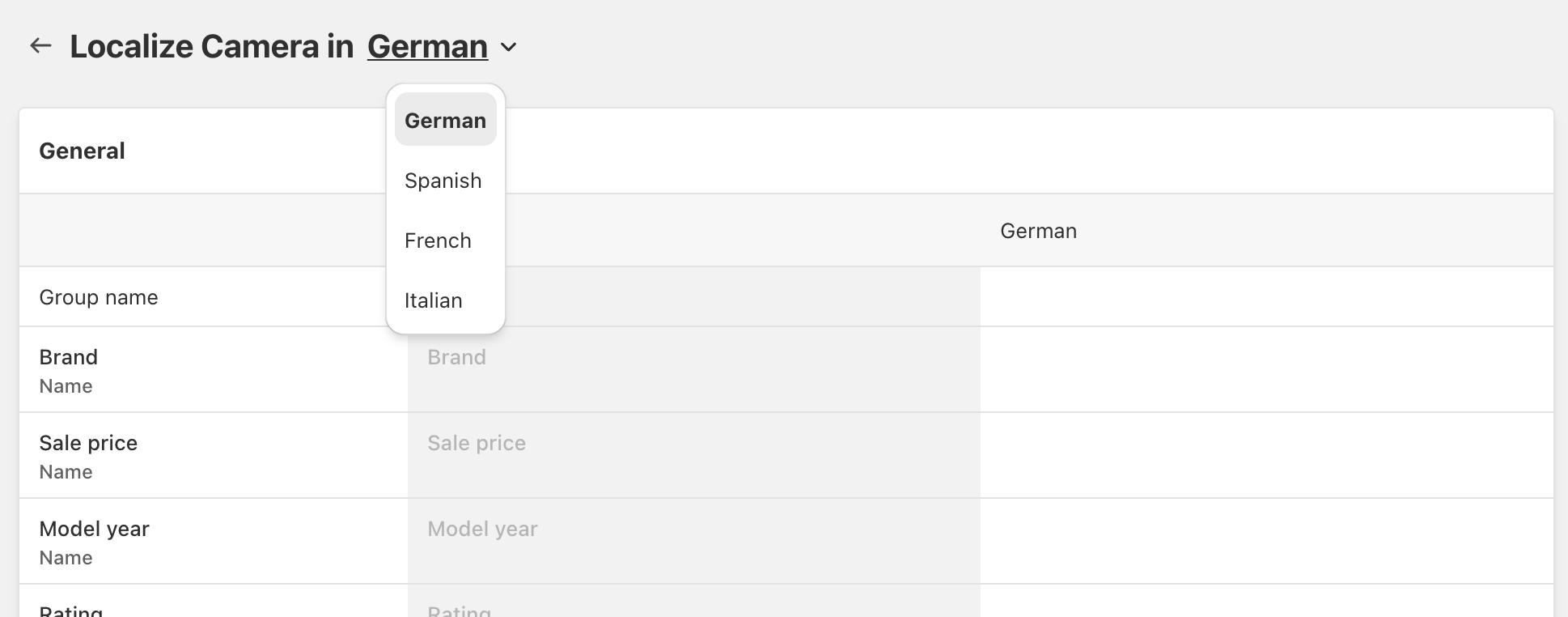
The page shows the translations of the first additional language. If your store has more languages, use Change language to switch between them. Languages whose translations need attention are marked (needs review).
Translate each text and save
For each group and attribute, the original text is shown next to its field. Fill in the translated group name, attribute name, tooltip and, for product option attributes, the option name (the name of the option in that language, so the app can find its values). Click Save, then repeat for other languages. To fill the fields faster, you can also auto translate them.
Translate everything
If a text isn’t translated, it will appear blank to customers browsing in that language. Make sure every field is filled in for every language.
Auto translate
To save time, click Auto translate at the top of the Localize page. The app translates the original texts and fills the fields that are still empty:
- Group names, attribute names and tooltips are translated. Fields you have already filled in, saved or not, are never replaced.
- Option names are never auto translated: they must exactly match the name of the product option in that language, so fill them in yourself.
- Nothing is saved yet. Review the translations, adjust them if needed, then click Save.
The button is disabled when there is no empty field left to translate.
Translate only what changed
When a table changes, only the new texts are empty. Click Auto translate to fill them without touching the translations you already have.
Keep translations up to date
Translations aren’t updated automatically when you change a table in your default language. The app tells you when they need attention:
- on the table page, a Some translations need review banner lists the languages to review — click a language to open its translation directly,
- on the Localize page, a Review translations banner appears when translations are missing or when the original text has changed since it was translated.
Added, removed or reordered groups and attributes are picked up automatically: only the new texts are empty, and existing translations are kept.
Translation still accurate?
If you changed the original text but the translation is still correct (for example after fixing a typo), click Save without changing anything to mark the language as reviewed.
Limitations
- You can’t translate something that doesn’t exist in the default language. For example, to have a tooltip in French, the attribute needs a tooltip in your default language first.
- Attribute icons are the same in every language.