Compare bar & dialogPro
The compare bar invites customers to open the comparison, and the dialog displays it. Both can be adapted to your brand from the Dynamic compare app embed.
Pro plan feature
Dynamic comparison is available on the Pro plan.
All the settings below are in the theme editor: App embeds › Dynamic compare.
Compare bar
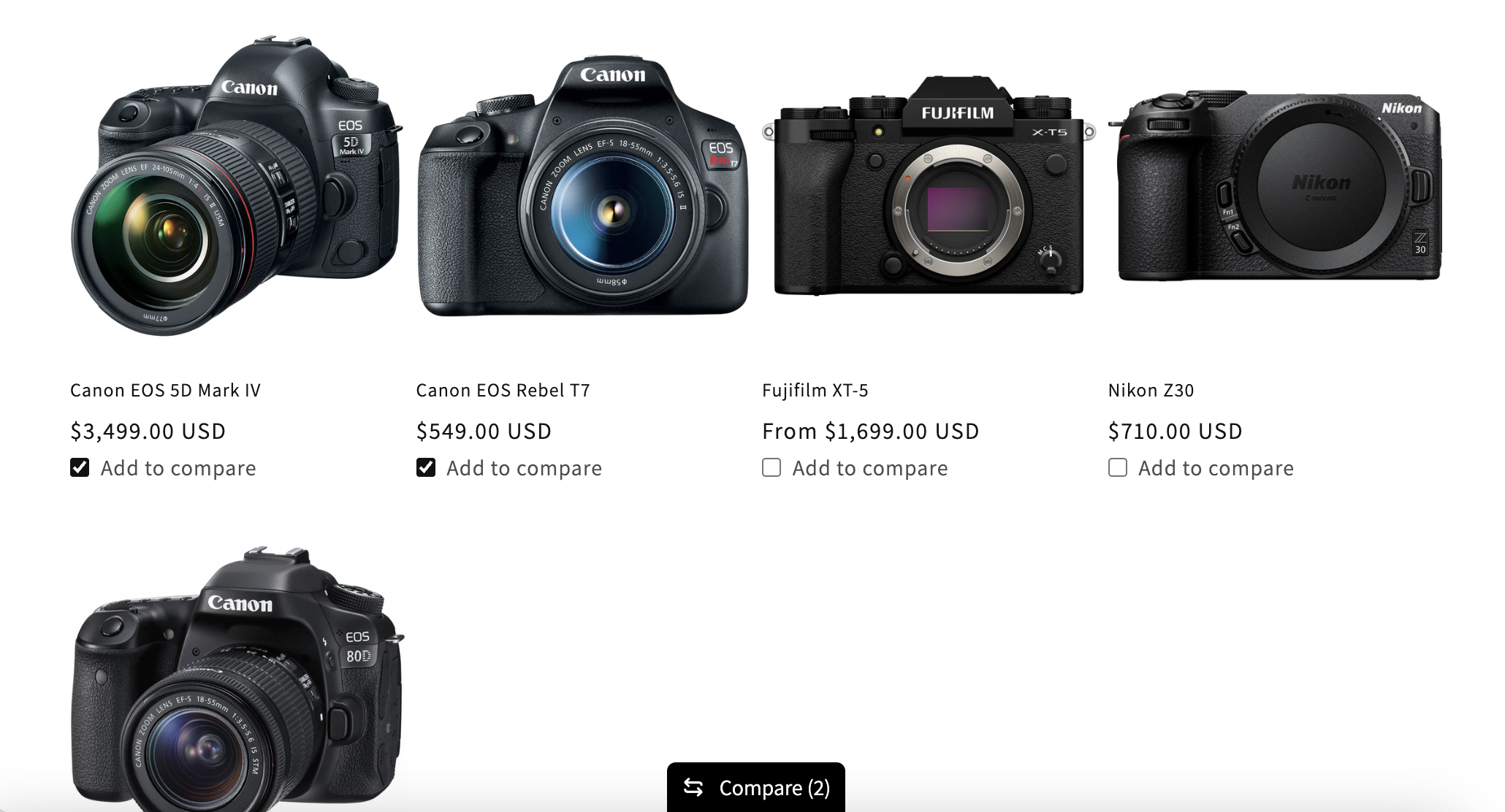
As soon as a customer adds a product to the comparison, a floating bar appears.
Style
- Simple (default) — a compact button. Discreet, ideal when comparison is an occasional feature.
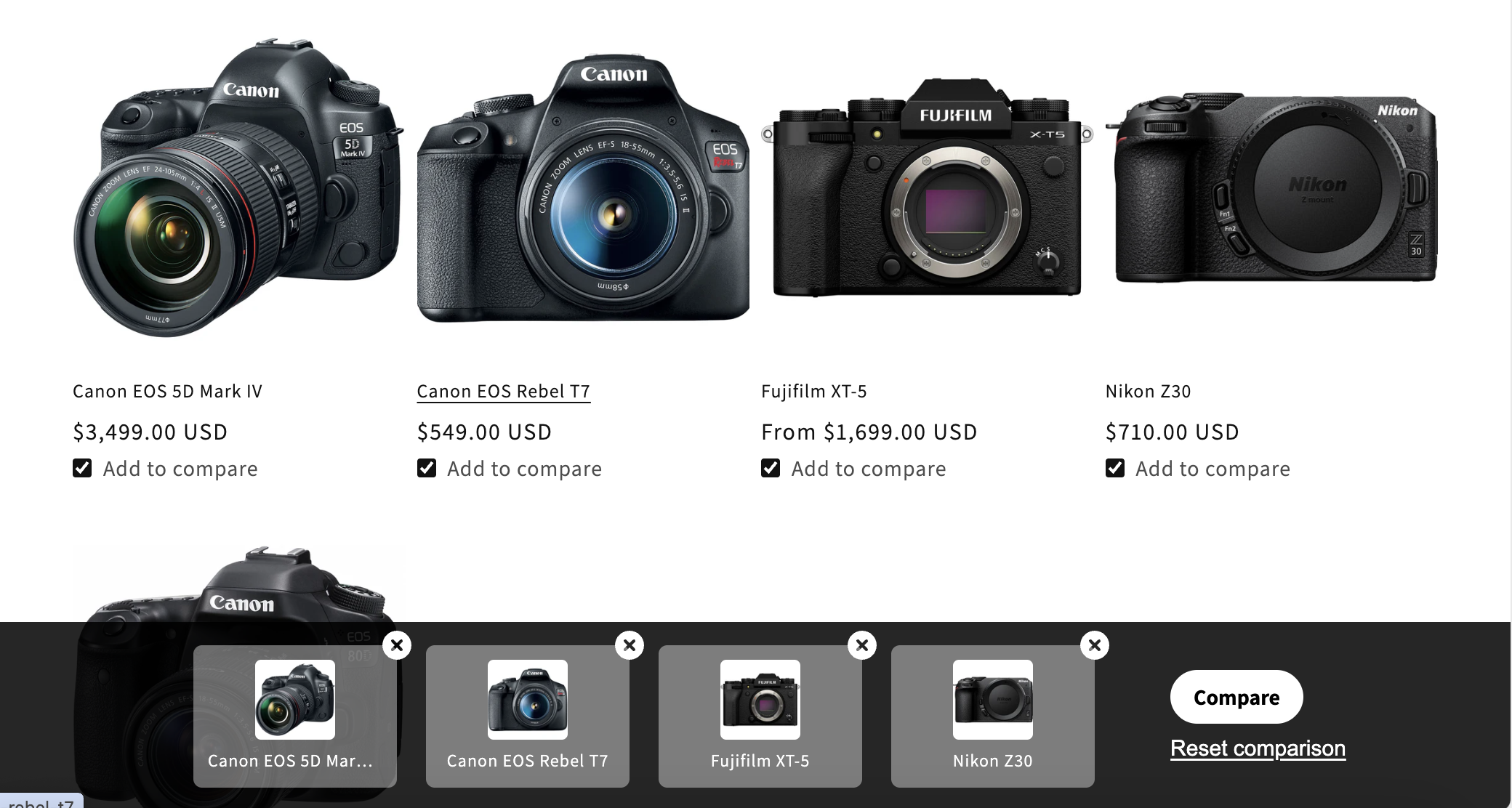
- Detailed — a larger bar showing the products being compared. Ideal when comparison is a key part of your shopping experience.
Settings
Simple or detailed bar.
Simple style only: left, right, bottom left, bottom center or bottom right.
Text size of the bar (12 to 20 px).
Colors of the bar. The border radius and font weight of its button follow the button settings of the comparison table editor, for a consistent look.
Dialog
Clicking Compare opens a dialog with a comparison table of the selected products. Customers can remove products from it or reset the comparison.
Order of the products in the table: automatic, price (low to high or high to low), or alphabetically (A–Z or Z–A).
Adds a switch to highlight differences or hide similarities. Learn more.
Lets customers choose the variant of each compared product.
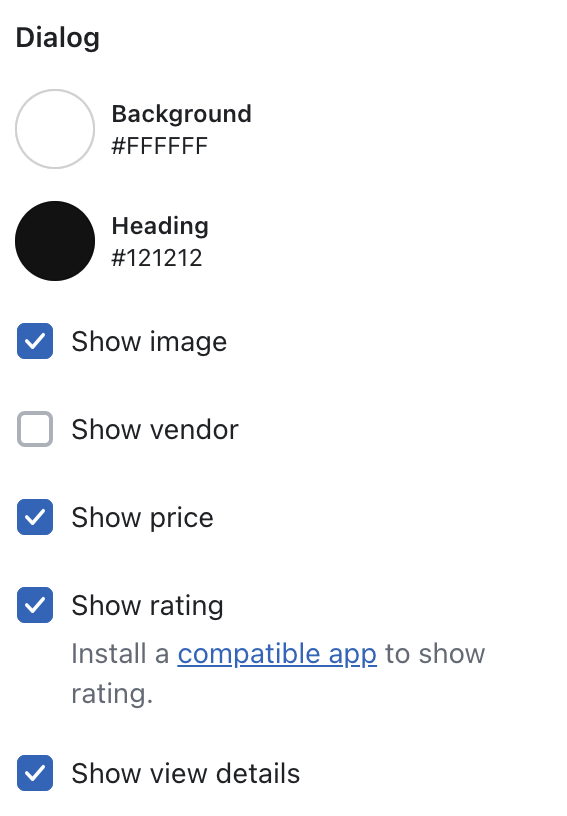
Information displayed at the top of each column. All are shown by default except the vendor.
Colors of the dialog.
Displays AI buying advice above the table. Learn more.
On long tables, the product names stay visible in a sticky bar while customers scroll (on screens wide enough to display the whole table without horizontal scrolling).
Table appearance
The table inside the dialog uses the appearance of your comparison tables, configured in the table editor. It can’t have a different look.