Specification table block
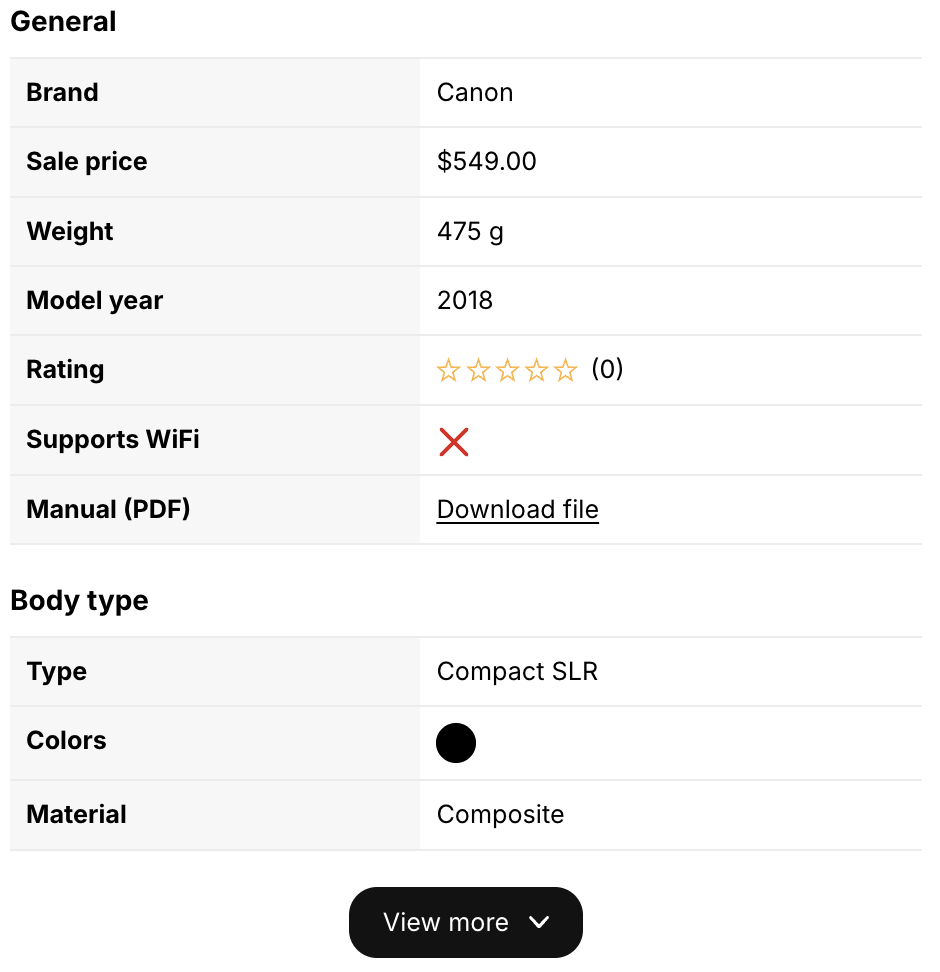
The specification table block displays the specifications of a product. It is typically added to the product page, right below the description or the buy buttons.
Add the block
- Open the theme editor on your product template.
- In the main product section, click Add block › Apps › Specification table.
- Drag it to the right position and click Save.
Alternatively, click Add block in the App extensions card of the app home page: the block is added to your product template automatically.
For a full-width table, add it as a section instead: Add section › Apps › Specification table.
Settings
Filled in automatically on product pages. Select a product to display its specifications on any other page.
Turn off to display all attributes as a single list, without group headings.
Number of rows displayed before a View more button (from 3 to 100). Customers click the button to reveal the rest of the table. Increase it to always show the full table.
Space above and below the table.
Use all available width, or set a custom maximum width.
Advanced: moves the table inside another element of the page, such as a tab or a collapsible. Learn more.
Good to know
- Variants: when customers select another variant, per-variant values refresh automatically.
- Empty values: attributes without a value for the product are hidden (you can change this with Hide empty rows in the table editor).
- Multiple columns: on wide screens, long tables can be split into two columns with Show multiple columns in the table editor.
- Performance and SEO: the table is rendered by your theme, in the page HTML. It doesn’t cause layout shifts and can be indexed by search engines.