
Comparison table block
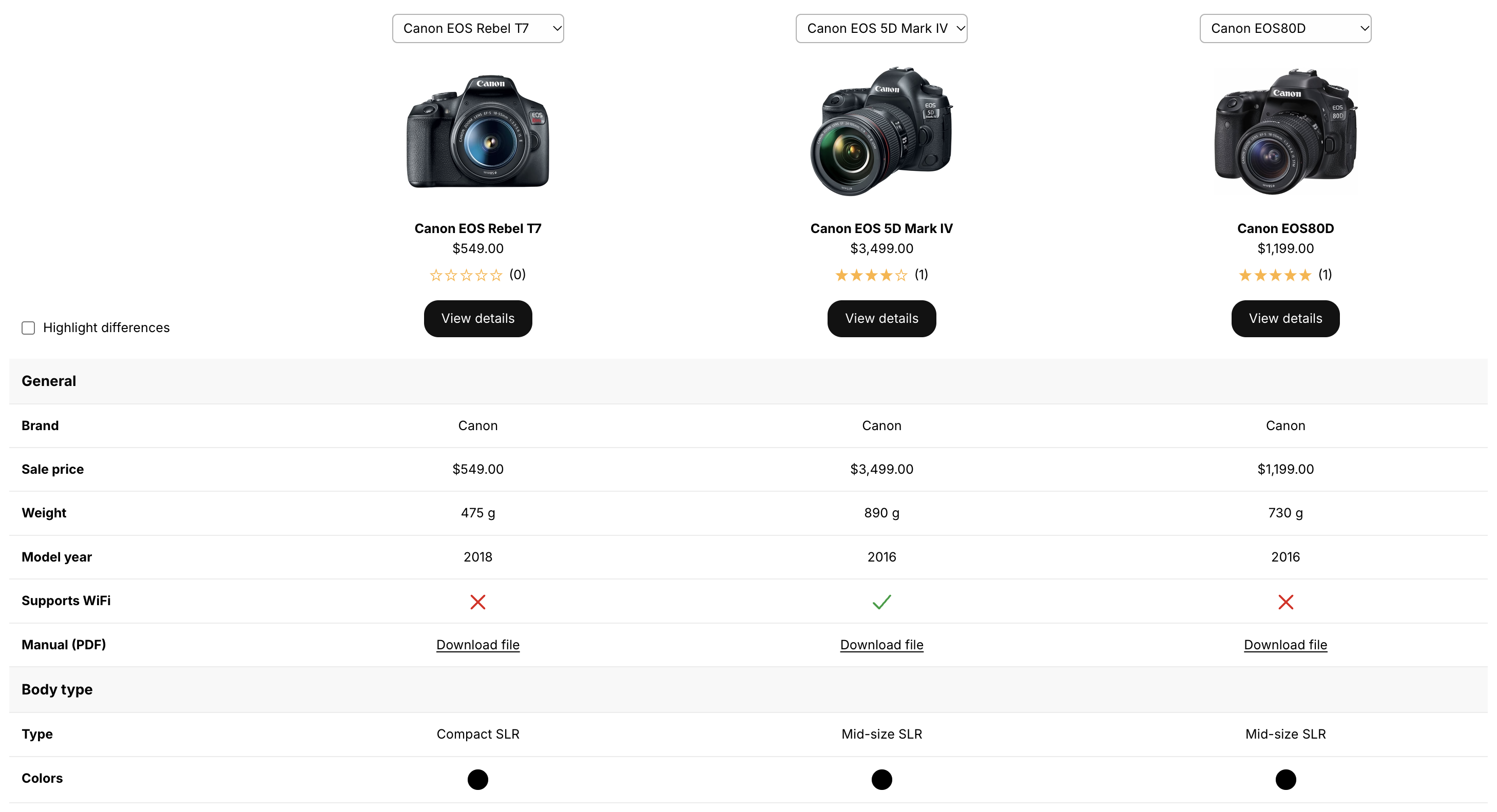
The comparison table block places the product of the page next to similar products, using their specifications. Customers see at a glance what sets them apart.
Add the block
Before adding the block, choose the products to compare in the app.
- Open the theme editor on your product template.
- Click Add section › Apps › Comparison table (comparison tables are wide, so a full-width section usually works best). You can also add it as a block inside an existing section.
- Click Save.
The table compares the product of the page with the products selected in its Compare with card in the app. It uses the attributes of the main product’s table; only attributes marked as Comparable are displayed.
A comparison table needs at least one product to compare with. With only the main product, nothing is displayed — use a specification table instead.
Settings
The main product. Filled in automatically on product pages.
Optional list of up to 20 products. When empty, the table uses the products chosen in the app. Useful to build comparison landing pages.
Compare with Shopify related products when no products are selected. Learn more.
Hide products that are sold out from the comparison.
Adds a switch to help customers spot differences. Learn more.
Lets customers choose the variant of each product. Learn more.
Display group headings in the table.
Number of rows shown before the View more button.
Number of products displayed at once (2 to 20). Learn more.
Replaces the table with a button that opens it in a modal. Learn more.
Choose which product information appears at the top of each column. Image, price, rating and the View details button are shown by default; the vendor is hidden. The rating requires a compatible review app.
Displays AI-generated buying advice above the table. Learn more.
Layout settings shared with the other blocks.
Limit the number of products
When many products are compared, the table becomes hard to read on smaller screens. The Visible products setting limits how many products are shown at once — 3 by default, and we recommend 2 or 3. Hidden products can be selected by customers from a dropdown at the top of each column.
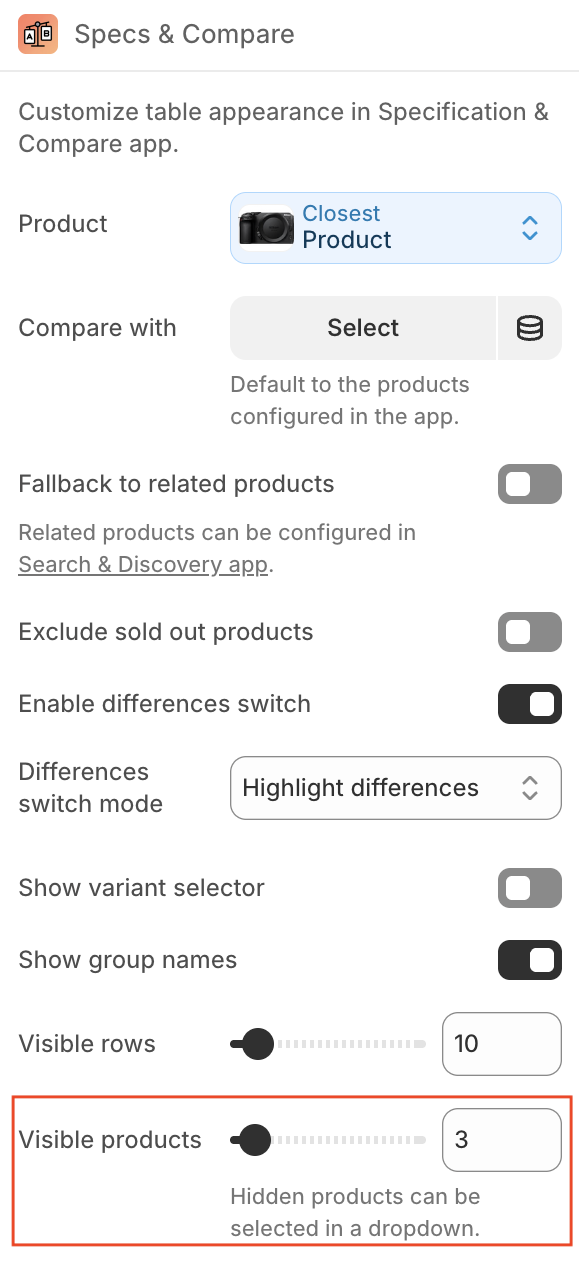
To display every product in a horizontally scrollable table instead, increase the value.
Fallback to related products
Choosing products manually can be time-consuming for large catalogs. Turn on Fallback to related products to use the products recommended by Shopify for the product page when you haven’t selected any.
Products you select manually always take priority. You can fine-tune recommendations in Shopify’s Search & Discovery app.
Highlight differences
When products have many attributes but only a few differences, a switch helps customers focus. Turn on Enable differences switch, then choose the Differences switch mode:
- Highlight differences (default): rows with different values get a colored background.
- Hide similarities: rows where all products have the same value are hidden.
When customers turn the switch on:
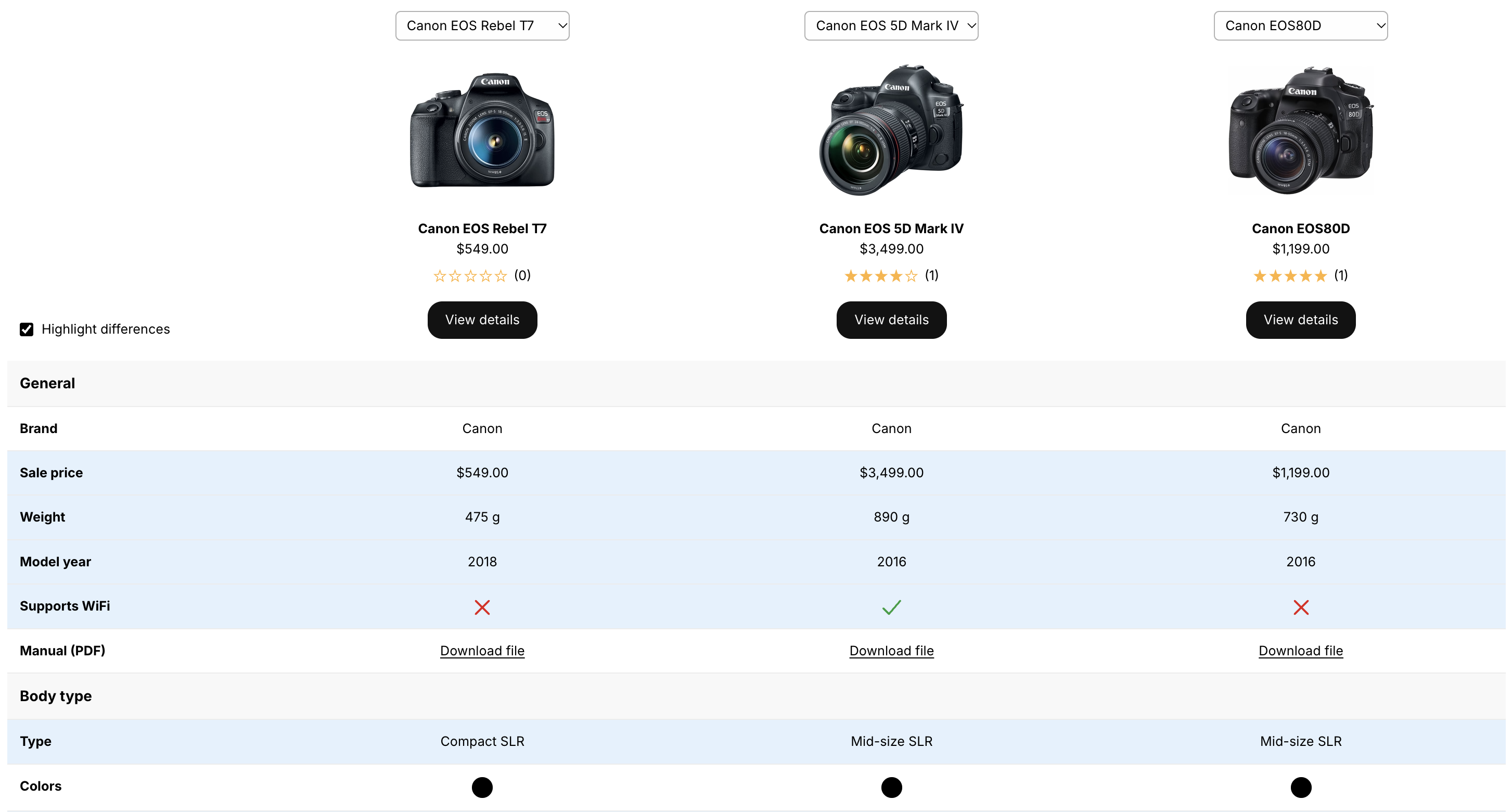
The highlight color (pale blue by default) can be changed in the table editor.
Variant selector
When specifications depend on the variant — per-variant attributes, variant metafields, prices — it helps to let customers choose which variant they compare. Turn on Show variant selector: a dropdown appears in each column, and values update when a variant is selected.
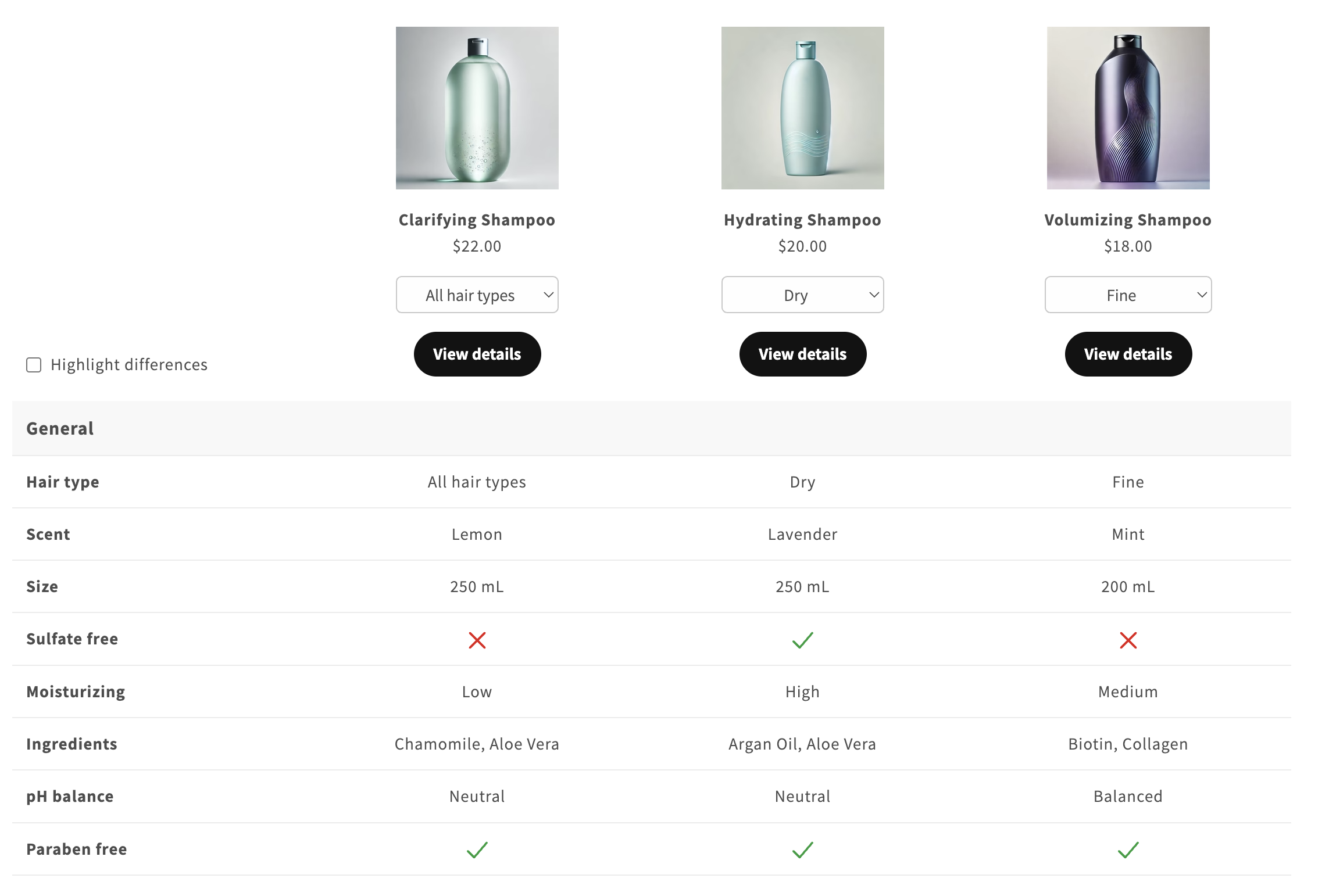
With the selector enabled, the column of the main product also follows the variant selected on the product page.
Comparing variants of one product?
To build a table where each column is a variant of the same product, use the variant comparison table instead.
Hide the selector for some products
Some products have variants with identical specifications, and a selector would only add noise. You can hide it for specific products, even when the setting is on:
- Open the product in your Shopify admin.
- In the Metafields card, click View all.
- Find Hide comparison table variant selector and set it to True.

Exclude variants from the selector
You may want to keep the selector but remove some variants from it — for example a “Custom” variant whose specifications depend on the customer’s choices.
- Open the product in your Shopify admin and click the variant.
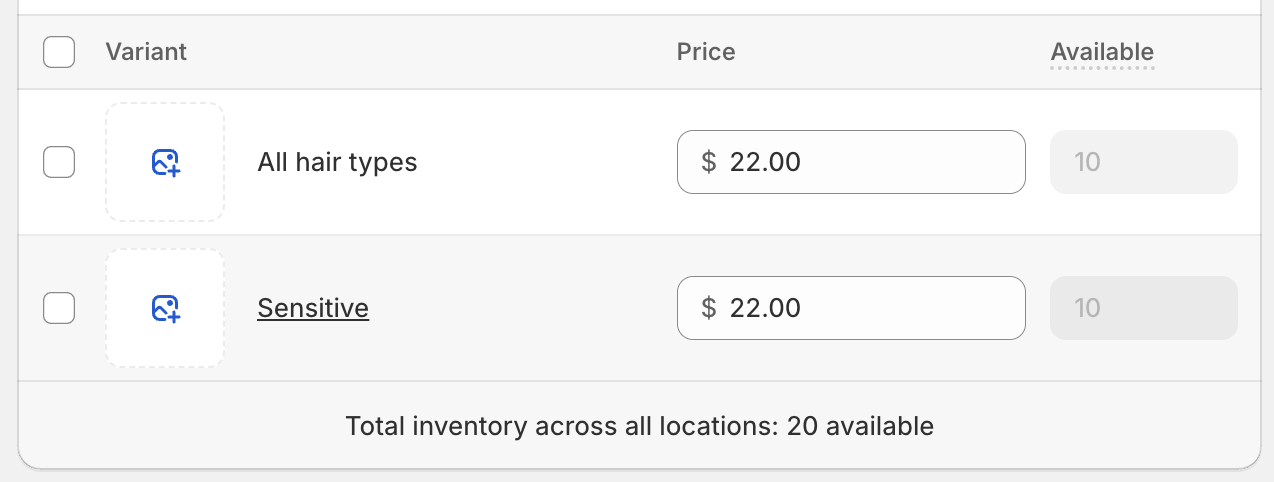
- In the variant Metafields card, click View all.
- Find Exclude from comparison variant selector and set it to True.

Show in a modal
Comparison tables take space. On long product pages, turn on Show in modal: the table is replaced by a button (“Compare products” by default, customizable with Modal button text) that opens the comparison in a modal.
Comparison table in a modal
A product page with the “Compare products” button, and the modal opened over the page showing the comparison table.