
Metafields & metaobjects
Already store product data in Shopify custom data? Connect it to your tables instead of typing it twice — values stay in sync automatically.
Connect a metafield
- In a table, click Add attribute and choose Metafield reference.
- Choose Connect a product metafield or Connect a variant metafield.
- Click Select a metafield definition and pick the definition. Use the search field if you have many definitions — they are listed in two sections: Custom metafields and Category metafields.
- Give the attribute a name and save the table.
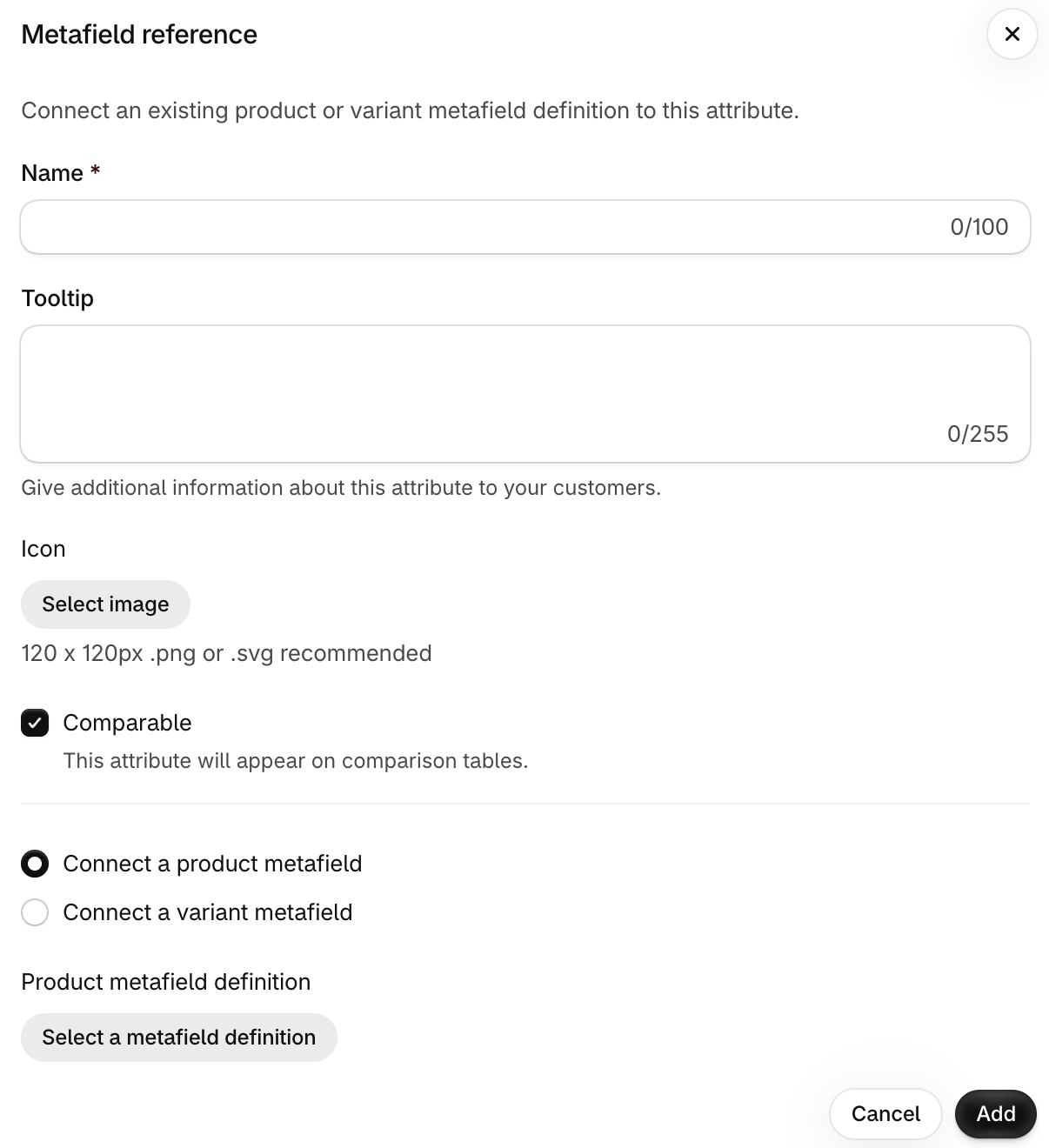
Values are then read directly from the metafield. To edit them, use the product page of your Shopify admin (or any tool you already use for metafields).
Definitions are required
Only metafields that have a definition can be connected. If your metafield doesn’t have one, create a metafield definition with the same namespace and key in Settings › Custom data.
Supported metafield types
Most metafield types are displayed with a dedicated format:
- Text (single-line, multi-line, rich text) — HTML in text metafields is rendered, and lists in rich text are nicely formatted.
- Numbers, dimensions, weights, volumes, ratings, dates, money, true/false, colors, URLs and links.
- Images — optionally with Allow image zoom on click, so customers can see a larger version.
- Files — displayed as a download link.
- Lists — lists of text, colors, links, products, collections, variants and metaobjects. Lists of dimensions are shown compactly (
30 × 20 × 10 cm), lists of weights and volumes as comma-separated values. - Metaobject references — see below.
A rating metafield can be displayed as a meter bar, just like the Scale type.
Category metafields
Shopify product categories come with standard metafields (like “Color” or “Material”) linked to shared metaobject entries. Connect them from the Category metafields section. Color category metafields are displayed as swatches.
Variant metafields
Connect a variant metafield to show values that change with each variant. If the variant value is empty, the app falls back to the product metafield with the same namespace and key. Learn more.
Connect a metaobject
Metaobjects are great for reusable entries — a “Material” with a name and a picture, a “Certification” with a logo…
There are two ways to display a metaobject, and choosing the wrong one is a common source of confusion:
| Your situation | Then use |
|---|---|
Your products already have a product (or variant) metafield that references a metaobject — for example a custom.material metafield filled in on each product page. | A Metafield reference attribute connected to this metafield. The metaobject linked to each product is displayed automatically. |
| You don’t have such a metafield, and you want to pick the metaobject entry for each product inside the app. | The Metaobject attribute type. |
The Metaobject attribute type doesn’t read your existing metafields
The Metaobject attribute type does not connect automatically to the metaobjects already linked to your products. It works like any other value managed in the app — just like a Single-line text attribute, except that instead of typing a text, you select an entry of a given metaobject definition, product by product, in the app.
If you already link metaobjects to your products through a metafield, use a Metafield reference attribute instead, as explained below. Otherwise, your products will show empty values until you select an entry for each of them in the app.
From a metafield that references metaobjects
When the metafield you connect references a metaobject (or a list of metaobjects), two extra settings appear:
- Metaobject field — the field shown as the value, e.g.
name. - Metaobject thumbnail field (optional) — an image or color field displayed next to the value, e.g.
swatch.
With the Metaobject attribute type
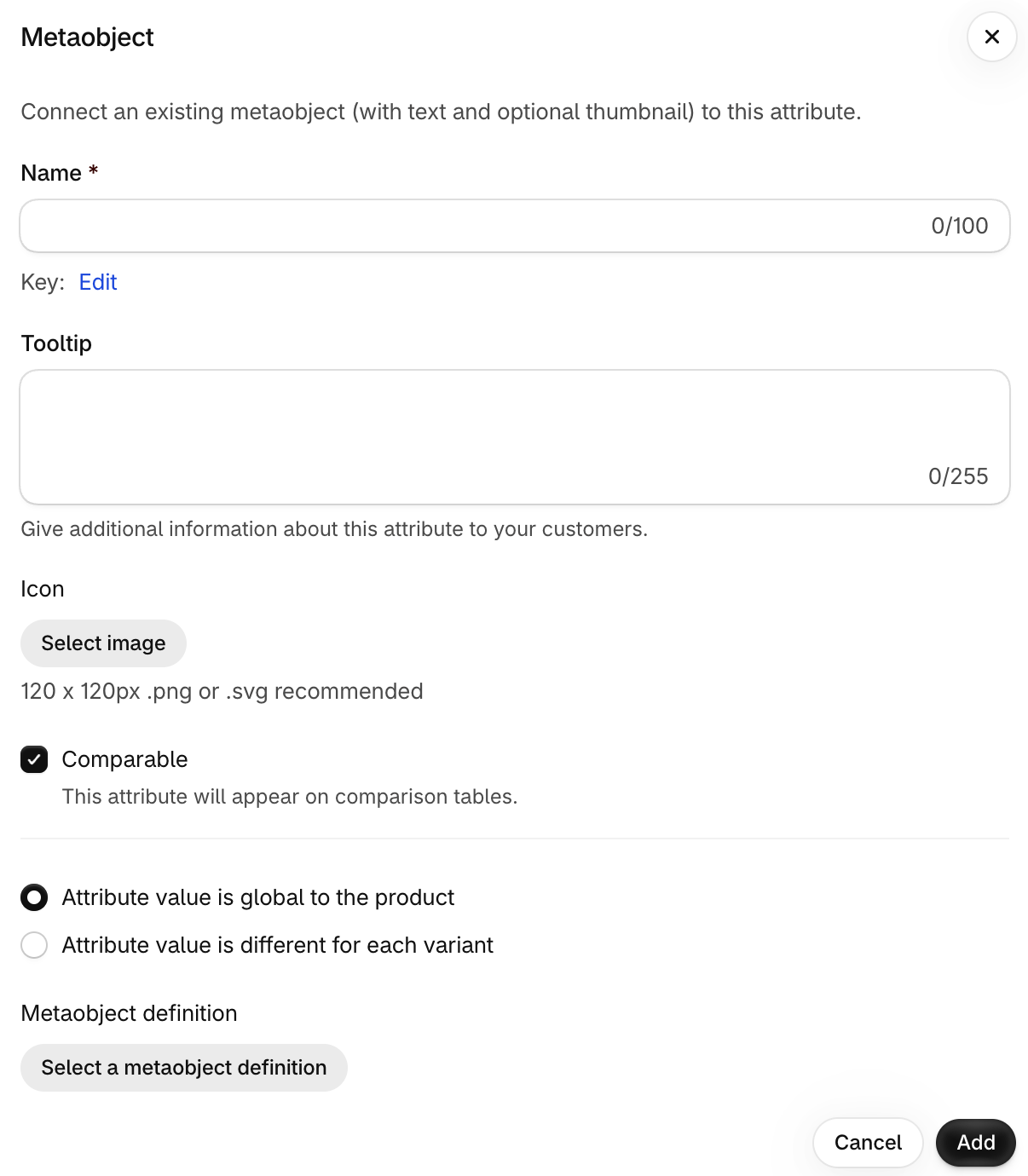
If you don’t have a metafield referencing the metaobject, use the Metaobject attribute type and choose the entry for each product directly in the app:
- Choose the Metaobject definition (e.g. “Material”).
- Choose the Metaobject field to display and an optional thumbnail field.
- In Products, click Select metaobject on each product to pick the right entry.
Attributes vs. metafields
Values managed in the app are also stored as metafields behind the scenes, for performance. So which should you use?
| Ask yourself | Then use |
|---|---|
| Will I use this information outside specification tables — in a theme section, a filter, a feed, another app? | A metafield definition created in Shopify, connected with a Metafield reference attribute. |
| Is this information only meaningful in a specification or comparison table? | A value managed in the app — it keeps your Shopify product page uncluttered and groups everything in one place. |
You can mix both approaches in the same table — most stores do.
Bulk editing
Because all values are metafields, you can bulk import or export them with an app such as Matrixify. Values managed in the app use the sc_attributes namespace.