Per-variant attributes
When variants of a product have different specifications, per-variant attributes keep tables accurate: values update as soon as the customer selects another variant.
When to use per-variant attributes
Use them when a value differs between variants of the same product: the capacity of each size of a backpack, the weight of each length of a bike frame, the resolution of each screen size…
If the value is the same for all variants, keep a product-level attribute: there’s less to fill in.
Create a per-variant attribute
There are three ways to get values per variant:
- Values managed in the app — when you create the attribute, choose Attribute value is different for each variant.
- Variant metafields — create a Metafield reference attribute and choose Connect a variant metafield. Learn more.
- Variant information — the SKU, Barcode and Weight product information types, and the Price and Product option types set to show the selected variant, update automatically.
Changing the scope later
You can change the scope of an existing attribute. For values managed in the app, product values and variant values are stored separately: after switching, the values entered with the previous scope are hidden (not deleted), and come back if you switch again.
Fill in variant values
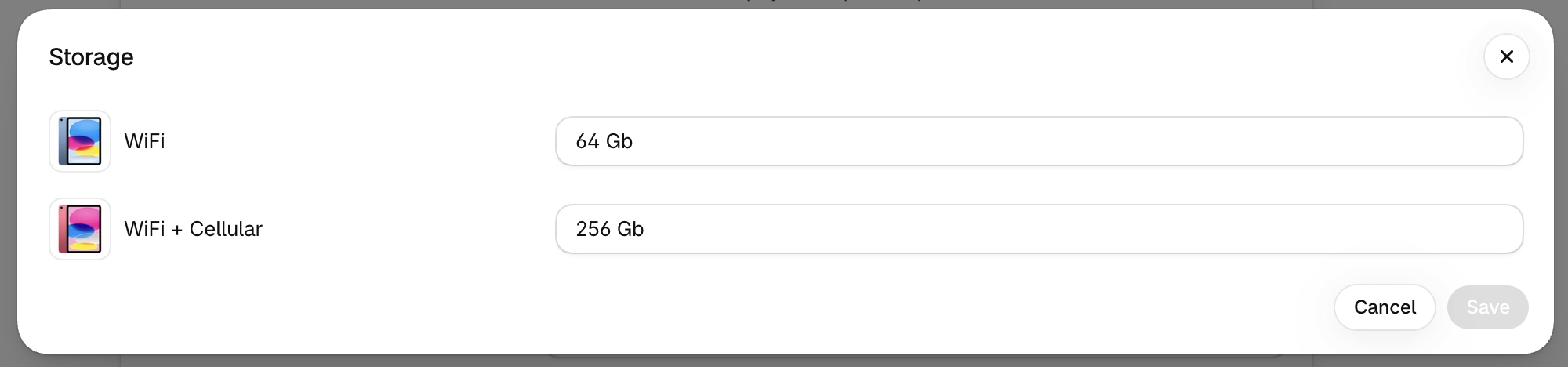
In Products, open the product. Per-variant attributes show an Edit variant attributes button: a window opens with one field per variant. Fill in each variant, then save.
How variant values are displayed
| Where | Which variant is shown |
|---|---|
| Specification table | The variant selected by the customer. The table refreshes when they pick another variant. |
| Comparison table | The first available variant of each product, unless you enable the variant selector. With the selector, customers choose the variant of each column, and the main product follows the variant selected on the page. |
| Variant comparison table Pro plan | Each column is one variant. Learn more. |
Works with most themes
The app detects variant changes on product pages automatically, even when the table is added as its own section or when the page has no “Add to cart” button. If a table doesn’t refresh on your theme, contact support.
Variant metafield fallback
When you connect a variant metafield, the app automatically uses the product metafield with the same namespace and key if the variant value is empty.
This saves a lot of data entry when most variants share the same value. For example, connect the variant metafield custom.battery_life, set custom.battery_life once on the product, and only fill in the variant metafield for the variants that differ.
This fallback is always on. It only works when the namespace and key are identical.