
Edit, duplicate, import & export
Tables evolve with your catalog. Learn how to update them safely, reuse them as a starting point, and move them between stores.
Edit a table
Open Specification tables in the app and click the table. Change what you need — name, visibility, conditions, groups or attributes — then click Save.
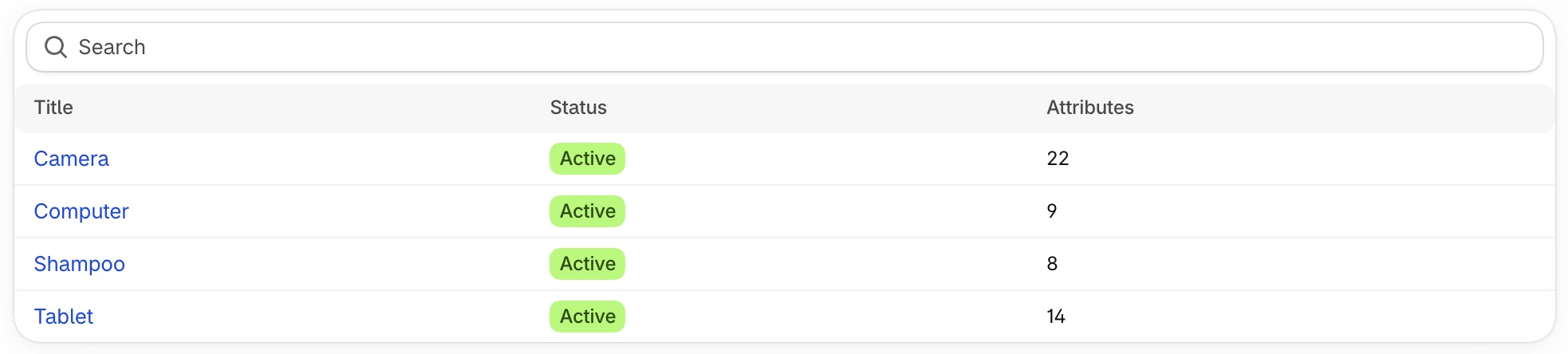
The list shows the status and the number of attributes of each table, and you can search tables by name.
Changes apply immediately to every product using the table:
- new attributes appear as soon as products have a value for them (empty rows are hidden by default),
- renamed or reordered groups and attributes are updated everywhere,
- removed attributes disappear from tables, but their values stay on your products.
Translations
If your store has several languages, remember to update translations after editing a table. The app highlights missing or outdated translations. Learn more.
Duplicate a table
Duplicating is the fastest way to create a table similar to an existing one.
- Open the table and click More actions › Duplicate.
- Enter a name for the new table and click Duplicate. A new table is created with the same groups and attributes.
Assignment conditions are not copied, so the new table isn’t assigned to any product until you add conditions or assign it manually.
Delete a table
Open the table and click More actions › Delete, then confirm.
This can’t be undone
The table structure (groups, attributes and their order) is permanently deleted. However, no product data is lost: values entered in the app and connected metafields stay on your products. If you recreate a table with the same attribute keys later, values will show up again.
Export tables
Export tables to a CSV file to back them up or copy them to another store — useful for merchants running several similar stores.
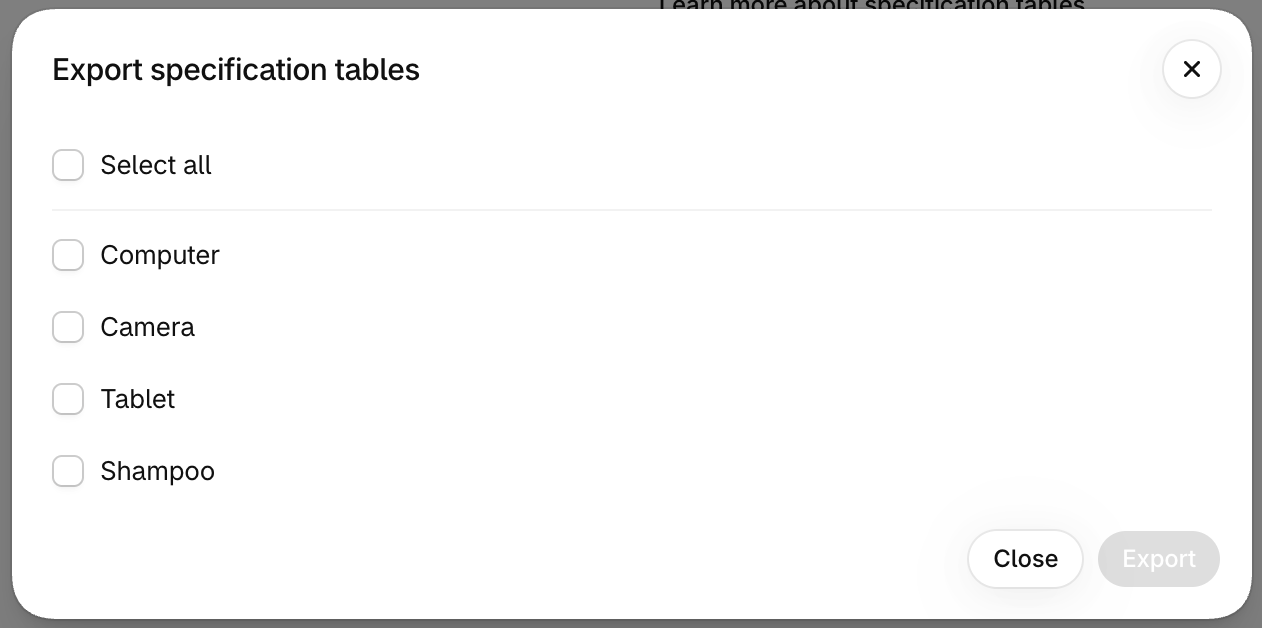
- In Specification tables, click Export.
- Select the tables to export (or Select all).
- Click Export to download the CSV file.
The file contains the name, handle, status, groups (with their attributes) and assignment conditions of each table.
Import tables
- In Specification tables of the destination store, click Import.
- Select a CSV file exported from the app. A summary shows which tables will be imported.
- Click Import.
Things to know:
- Nothing is overwritten. If a table with the same handle already exists, a new table is created next to it.
- Icons are not included, because they are files of the original store. Re-select them after importing.
- Don’t edit the file. Only files exported by the app, unmodified, can be imported reliably.
- Translations are not included. Only the default language is imported. Translate the tables again in the destination store. Learn more.
- Product values are not included. Tables define the structure; values are metafields on each product. To copy values, use a bulk metafield tool such as Matrixify.
- Assignment conditions based on collections refer to collections of the original store, so check them after importing.