Key concepts
Three simple building blocks — tables, groups and attributes — power everything the app displays. Understanding them makes the rest of the setup straightforward.
The building blocks
Attributes
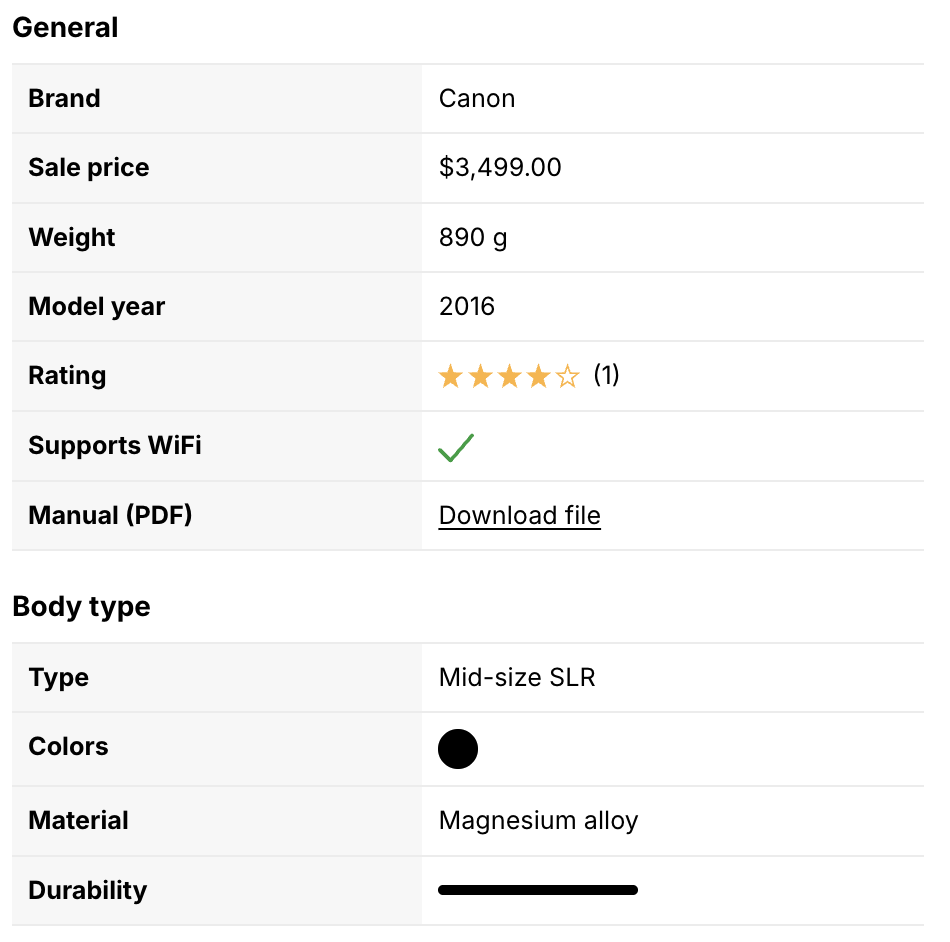
An attribute is one piece of information about a product: the release date of an album, the maximum resolution of a camera, the volume of an oven or the noise level of a washing machine.
Each attribute has a name (what your customers read, like “Battery life”) and a value for each product (like “40 h”). Values can come from three places:
- Existing product information — the price, SKU, vendor, weight, options… The app reads them directly from your product, so there is nothing to enter.
- Values managed in the app — information that only makes sense in a specification table, such as “ISO range”. You enter it in the app for each product.
- Existing metafields and metaobjects — if you already store information in Shopify custom data, connect it instead of typing it again.
You can mix all three in the same table. See all attribute types.
Groups
When a product has many attributes, groups make them easier to scan. For a camera, “Maximum resolution”, “Effective pixels” and “Sensor size” could live in a “Sensor” group, while “Weight” and “Dimensions” go into “Body”.
Every attribute belongs to a group, so a table has at least one group. If you don’t need visible group names, you can hide them on your store.
Specification tables
A specification table is the list of groups and attributes used for a kind of product. It works like a template: you design it once, and every product that uses it shows the same structure with its own values.
Start small
You can add, remove, rename and reorder groups and attributes at any time. Start with a handful of attributes and improve the table as you learn what your customers need.
How it all fits together
Specification table “Headphones”
├── Group “Performance”
│   ├── Attribute “Battery life”      → 40 h        (value managed in the app)
│   └── Attribute “Price”             → $199        (existing product information)
└── Group “Design”
    ├── Attribute “Colors”            → ● ● ●       (product option)
    └── Attribute “Material”          → Aluminium   (existing metafield)
Once a product is assigned to a table, the app shows its values in:
- a specification table on its product page,
- the comparison tables it appears in, next to other products using the same table,
- the dynamic comparison dialog, when shoppers choose to compare it Pro plan.
How many tables should I create?
Create one table per big family of products — products that are different enough to need different information. “Camera”, “Washing machine” and “Oven” should each have their own table.
Avoid creating many specialized tables, as they are harder to maintain. Instead of a “Front-load washing machine” table and a “Top-load washing machine” table, create a single “Washing machine” table with an “Access” attribute.
A simple rule: would it make sense for a customer to compare these two products?
| Products | Makes sense to compare? | Recommendation |
|---|---|---|
| A washing machine and an oven | No | Two tables: “Washing machine” and “Oven” |
| A t-shirt and a pair of socks | Probably not | Two tables: “T-shirt” and “Socks” |
| A digital camera and a film camera | Probably yes | One “Camera” table with a “Type” attribute (Digital / Film) |
Comparison tables compare products of the same table
Comparison tables use the attributes of the main product’s table. That’s another reason to group comparable products under the same table.
Where is my data stored?
Everything is stored in your Shopify store, not on our servers:
- specification tables are saved as Shopify metaobjects,
- values managed in the app are saved as product and variant metafields.
This is why the app is fast, why your data stays yours if you stop using the app, and why developers can access everything in Liquid. Learn more about the data model.
Specification table vs. comparison table vs. dynamic comparison
| Specification table | Comparison table | Dynamic comparison Pro plan | |
|---|---|---|---|
| Shows | One product | Several products side by side | Products chosen by the shopper |
| Who picks the products? | — | You (or Shopify related products) | The shopper |
| Where | Product pages (or any page) | Product pages or landing pages | Collection, search and product pages |
| Set up in | Theme editor block | Theme editor block | Theme editor app embed |