Assign tables to products
A product only shows specifications once a table is assigned to it. Let conditions do the work for large catalogs, or pick the table manually for full control.
Two ways to assign a table
| Automatic assignment | Manual assignment | |
|---|---|---|
| How | Conditions on the table, like Shopify automated collections | Pick the table on each product |
| Best for | Large catalogs, products added often | Small catalogs, exceptions |
| New products | Assigned automatically if they match | Must be assigned one by one |
| Priority | Used when no table is set manually | Always wins over conditions |
You can combine both: use conditions for most products, and manually assign a different table to the few exceptions.
Automatic assignment
Open a table and find the Assignment conditions card. Click Add condition and choose what to check.
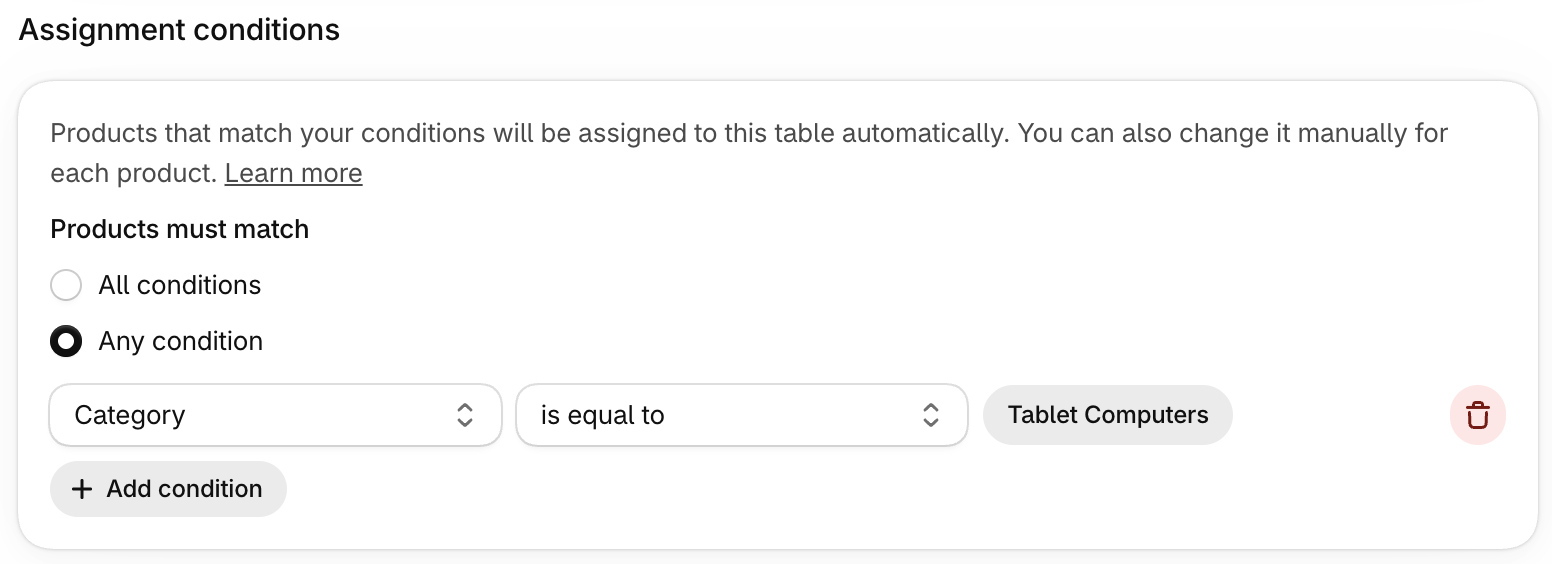
Available conditions
| Condition | Relations | Example |
|---|---|---|
| Category | is equal to | Category is equal to “Headphones” |
| Collection | is equal to (product belongs to the collection) | Collection is equal to “Shirts” |
| Tags | contains | Tags contains “wireless” |
| Product type | is equal to, is not equal to, contains | Product type is equal to “Sofa” |
| Vendor | is equal to, is not equal to, contains | Vendor contains “Acme” |
Product categories must match exactly
A category condition only matches the exact category you select. If a product is in “Digital cameras” (a subcategory of “Cameras”), a condition on “Cameras” won’t match it — select “Digital cameras”.
Match all or any conditions
When a table has several conditions, choose how they combine with Products must match:
- All conditions: a product is assigned only if every condition matches.
- Any condition: a product is assigned as soon as one condition matches.
Multi-language stores
Product types are translatable. If you translate them, a condition on the product type only works reliably in your default language. The app shows a warning when you use this condition: prefer product category, collection or tags, which don’t change with translations.
Best practices
Automatic conditions are powerful, but overlapping conditions can make a product match two tables. Only one table can be used per product, which can lead to surprises. To avoid this:
- Use one condition per table whenever possible.
- Prefer unambiguous conditions. The product category is ideal, since each product has exactly one category.
- Check for warnings. While you edit conditions, the app warns you when they overlap with the conditions of other tables (and names them), and the Products page flags products that match several tables.

To resolve a conflict, adjust the conditions of one of the tables, or assign the right table manually on the product.
Manual assignment
- In the app, open Products and click the product.
- In the Specification table card, choose a table from the list.
- Click Save.
If a table was already assigned automatically, the card tells you which one, and your manual choice overrides it.
Shortcut from the Shopify admin
On any product page of your Shopify admin, click More actions › Edit product specifications to jump straight to that product in the app.
Check the result
The Products page lists every product with its Table and Compare with columns. Products without a table show a No table badge.