
Fill in product specifications
Once a table is assigned, each product needs its values. The Products page of the app gives you a focused editor, product by product.
Open a product
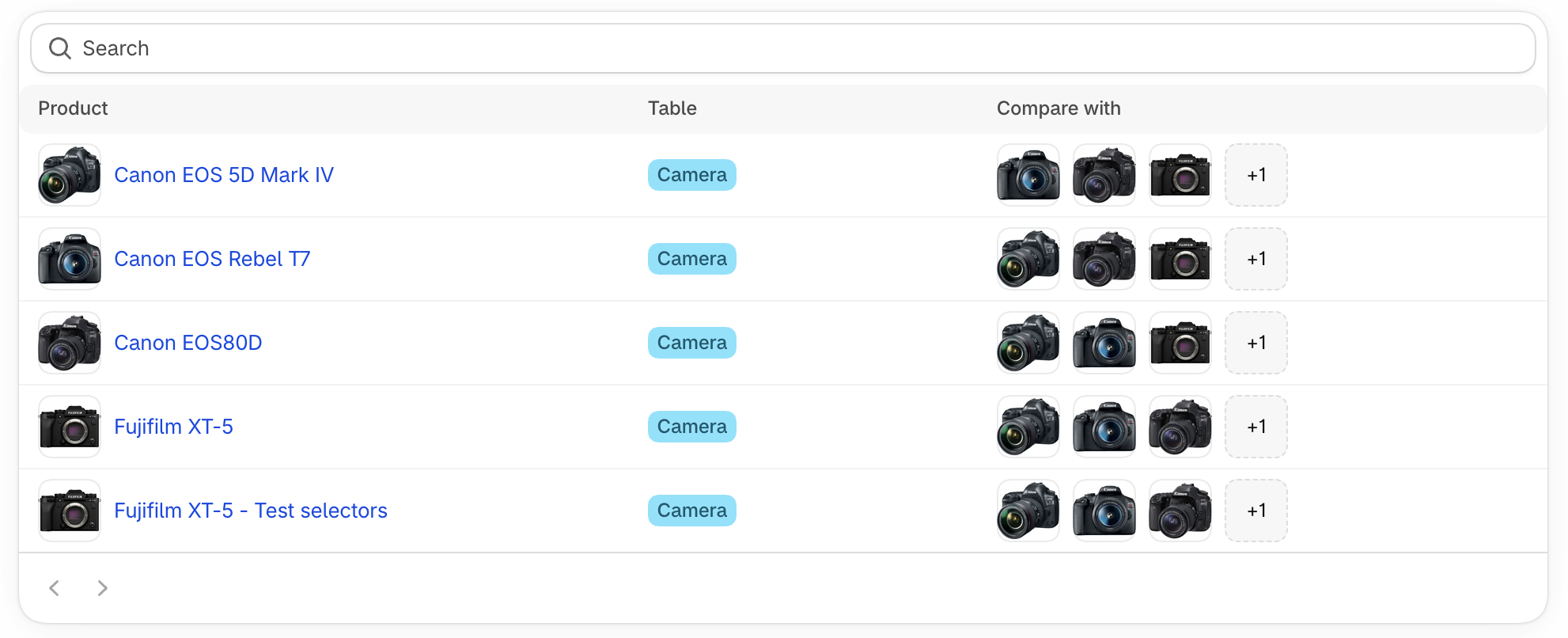
In the app, click Products. The list shows every product with its assigned table and the products it is compared with. Use the search field to find a product, then click it.
From the Shopify admin
On a product page of your Shopify admin, click More actions › Edit product specifications to open that product directly in the app.
Choose the table
The Specification table card shows which table the product uses:
- if a table matches the product’s assignment conditions, the card tells you it was assigned automatically — you can still override it,
- otherwise, choose a table from the list, or click Create table if you don’t have one yet.
If your store doesn’t have any specification table yet, the page invites you to create one first.
Enter the values
The attributes of the table appear below, organized in the same groups. Depending on the attribute type, you’ll see:
- a field to fill in for values managed in the app (text, number, dimension, date, color, true/false, file, link, scale, metaobject…),
- a short description like “Connected to the product price” for attributes that read existing product information or a metafield. Those values are edited in Shopify, not in the app.
Attributes with automatic unit conversion show an indicator reminding you that values will be converted for customers in other countries.
Leave a field empty if the information doesn’t apply: empty rows are hidden on your store by default.
For per-variant attributes, click Edit variant attributes to open a window with one field per variant. Learn more.
When you’re done, click Save in the bar at the top of the page (or at the bottom of the page). Discard cancels your unsaved changes.
Work faster
- Previous / next arrows at the top of the page take you to the neighbouring product of the list. If you have unsaved changes, the app asks for confirmation before leaving.
- View product opens the product on your online store, so you can check the result.
- Localize opens Shopify’s Translate & Adapt app on this product to translate its values. The button appears when the app is installed and your store has several languages.
- Open theme editor, in the Show on your store card at the bottom of the page, opens your theme on this product so you can add the table blocks.
Bulk import and export
The app doesn’t include a bulk editor for product values. Since all values are stored as product and variant metafields, you can bulk edit them with a dedicated app such as Matrixify. Values managed in the app use the sc_attributes namespace, and their key is the attribute key.