Collection & search pagesPro
Turn on the Dynamic compare app embed, and an “Add to compare” checkbox appears on the product cards of your collection and search pages.
Pro plan feature
Dynamic comparison is available on the Pro plan.
1. Enable the app embed
- Open the theme editor (Online Store › Themes › Customize).
- In the left sidebar, click the App embeds icon.
- Turn on Dynamic compare and click Save.
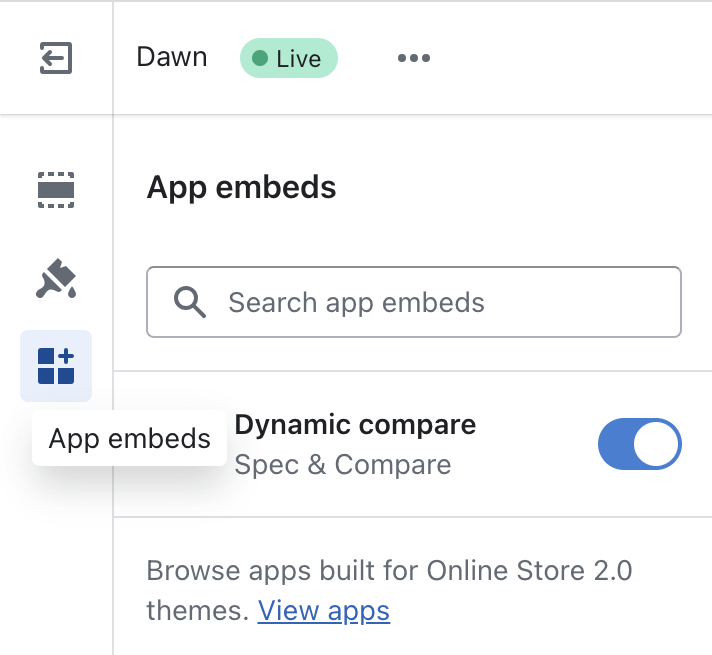
Shortcut: click Enable app embed in the App extensions card of the app home page.
2. Choose where comparison is available
Select the collections where the “Add to compare” checkbox is displayed. Leave empty to show it on all pages. Useful for stores selling very different kinds of products.
Empties the comparison list each time the customer changes page. Combined with the previous setting, it ensures customers only compare products of the same collection.
3. Display the button on product cards
How the checkbox is added to product cards depends on your theme.
Themes with blocks in product cards
Recent Shopify themes (such as Horizon) let you add blocks directly inside product cards. This is the recommended approach when your theme supports it: you control the exact position of the button, and it’s automatically hidden for products without a specification table.
- In the theme editor, select the product card of your collection template.
- Click Add block › Apps › Add to compare.
- Position the block and click Save.
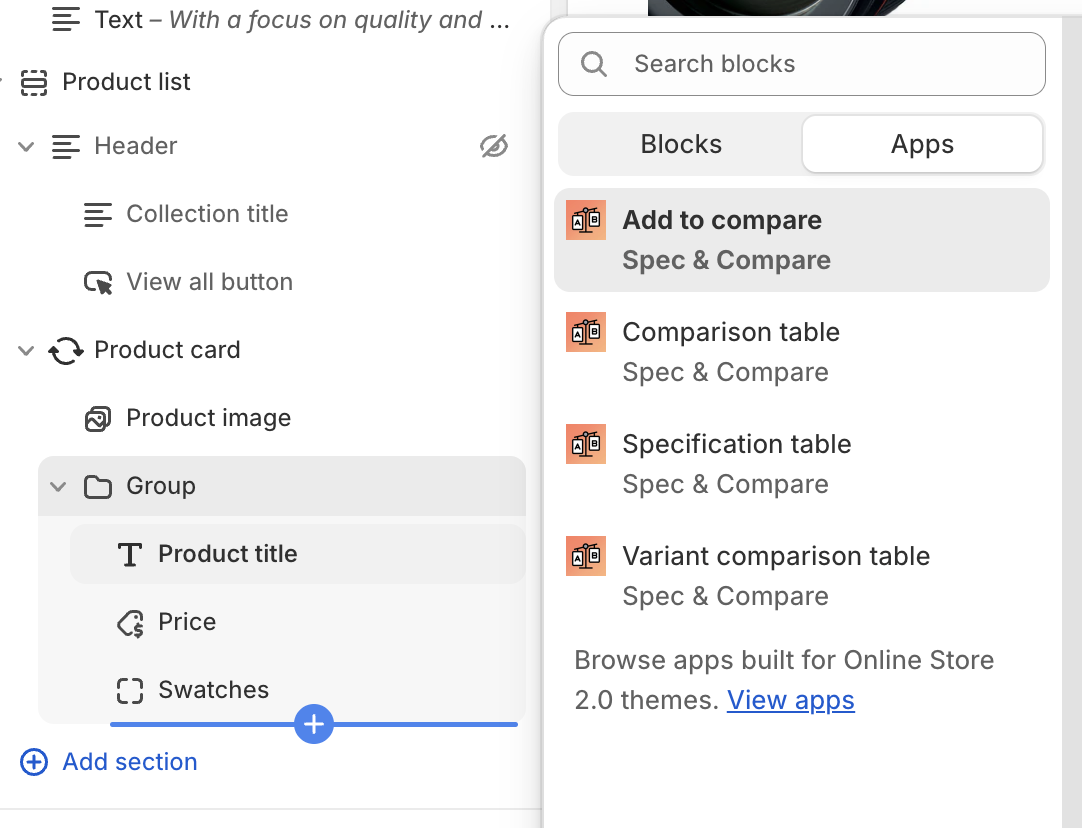
Supported themes include:
- Atelier
- Dwell
- Fabric
- Heritage
- Horizon
- Pitch
- Ritual
- Savor
- Tinker
- Vessel
Your theme isn’t listed? If you can add app blocks to its product cards, it works too — ask your theme developer.
Other Online Store 2.0 themes
For other themes, the app embed automatically injects the checkbox at the right place in product cards. It works out of the box with 173 popular themes — see the full list of supported themes.
It also works with the product grids of these search and filter apps:
- Boost AI Search & Filter
- Searchanise Search & Filter
- Smart Product Filter & Search
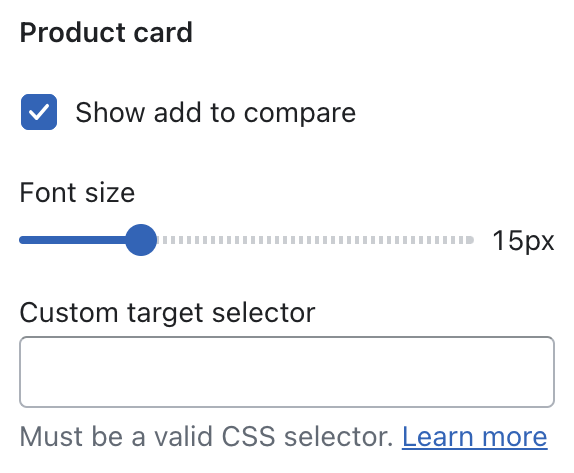
The Product card category of the app embed offers these settings:
Turn off if you don’t want the app to inject the checkbox — for example when you use theme blocks or a custom button.
Text size of the “Add to compare” label.
For themes that aren’t supported natively: a CSS selector telling the app where to insert the button in each product card.
Button not showing?
If your theme isn’t supported and you don’t know how to write a CSS selector, contact our support with the name of your theme. We regularly add built-in integrations for new themes.
Next step
Customize the compare bar and the comparison dialog.